Accessible E-Learning
How to Make Your Online Courses Accessible: A Complete Guide
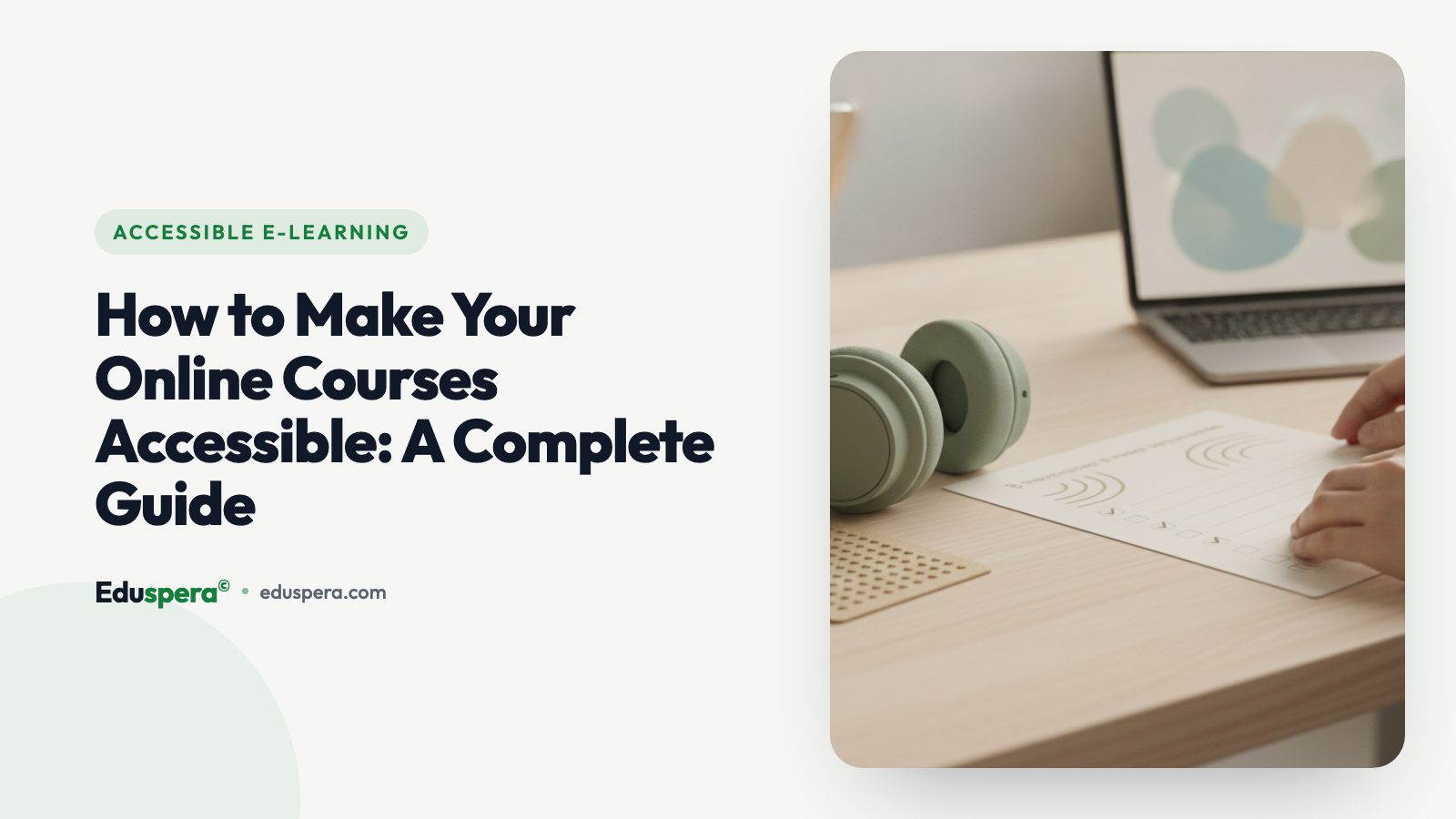
Over one billion people worldwide live with some form of disability. That is roughly 15% of the global population, according to the World Health Organization. Yet the vast majority of online courses remain inaccessible to learners who are blind, deaf, have motor impairments, or experience cognitive and neurological differences.
If you create online courses, accessibility is not optional. It is a legal obligation in many jurisdictions, a moral imperative, and a business opportunity. Accessible courses reach more learners, improve completion rates for everyone, and signal that your brand takes inclusion seriously.
This guide walks you through exactly how to make your online courses accessible, step by step. Whether you are an independent course creator, an instructional designer at a university, or a training manager at a corporation, you will find actionable advice you can implement today.
Why Accessibility Matters for Online Courses
Accessibility is often framed as a compliance checkbox. That framing misses the point. Here is why accessibility should be a first-class design principle in your course creation workflow:
- Scale of impact: The WHO estimates that 1.3 billion people experience significant disability. In the United States alone, 26% of adults have some type of disability (CDC, 2023). Your learners almost certainly include people with disabilities, whether they disclose them or not.
- Legal requirements: The Americans with Disabilities Act (ADA), Section 508, the European Accessibility Act (EAA), and the UK Equality Act all require digital content to be accessible. Lawsuits against inaccessible educational platforms have increased over 300% since 2018.
- Better learning outcomes for everyone: Captions help non-native speakers. Clear structure helps learners with ADHD. Keyboard navigation helps power users. Accessibility improvements benefit all learners, a concept known as the curb-cut effect.
- Market advantage: Organizations that prioritize accessibility report higher enrollment, lower dropout rates, and stronger brand loyalty.
Understanding WCAG 2.2 AA: The Accessibility Standard
The Web Content Accessibility Guidelines (WCAG) are the international standard for digital accessibility. Version 2.2, published by the W3C, is the current benchmark. Most laws reference WCAG 2.1 AA as the minimum, but 2.2 AA is the target you should aim for.
WCAG is organized around four principles, known by the acronym POUR:
- Perceivable: Content must be presentable in ways all users can perceive. This covers text alternatives for images, captions for video, and sufficient color contrast.
- Operable: All functionality must be available via keyboard, with enough time to interact, and without causing seizures or physical reactions.
- Understandable: Content must be readable and predictable. Forms must provide clear instructions and error messages.
- Robust: Content must work reliably across assistive technologies, including screen readers, switch devices, and voice control software.
Each principle contains specific success criteria rated at three levels: A (minimum), AA (recommended), and AAA (ideal). For online courses, WCAG 2.2 Level AA is the standard you should meet.
Key WCAG 2.2 Criteria for Course Creators
You do not need to memorize all 86 success criteria. Focus on the ones most relevant to e-learning:
- 1.1.1 Non-text Content (A): Every image, chart, and diagram needs alt text.
- 1.2.2 Captions (A): All pre-recorded video must have synchronized captions.
- 1.2.5 Audio Description (AA): Video content should include audio descriptions when visual information is not conveyed through the audio track alone.
- 1.3.1 Info and Relationships (A): Use semantic HTML headings, lists, and tables, not just visual formatting.
- 1.4.3 Contrast (AA): Text must have a contrast ratio of at least 4.5:1 against its background.
- 2.1.1 Keyboard (A): All content and controls must be operable via keyboard alone.
- 2.4.6 Headings and Labels (AA): Headings and labels must describe their topic or purpose.
- 3.1.1 Language of Page (A): The default language of each page must be programmatically determined.
Step 1: Add Accurate Captions to Every Video
Video is the backbone of most online courses, and captions are the single most impactful accessibility improvement you can make. Captions benefit deaf and hard-of-hearing learners, non-native speakers, people watching in noisy environments, and learners who process written information more effectively than spoken.
Caption Best Practices
- Use human-reviewed captions, not raw auto-generated ones. Auto-generated captions from YouTube or similar platforms typically have error rates of 10-30%. For educational content with technical terminology, error rates can be even higher. Always review and correct auto-generated captions.
- Include speaker identification when multiple people are speaking.
- Describe relevant sounds: [applause], [music playing], [phone ringing]. These non-speech sounds carry meaning.
- Keep caption timing synchronized with the audio. Each caption should appear within 100 milliseconds of the spoken word.
- Limit line length to 32-42 characters per line, with a maximum of two lines displayed at once.
- Provide transcripts as a downloadable companion to video captions. Transcripts allow learners to search, review, and study at their own pace.
Platforms like Eduspera integrate automatic captioning powered by AI speech recognition, giving you a strong starting point that you can review and refine rather than building from scratch.
Step 2: Write Meaningful Alt Text for Images and Diagrams
Alternative text (alt text) is a short description of an image that screen readers announce to blind and low-vision users. It is also displayed when images fail to load and is used by search engines to understand your content.
Alt Text Guidelines for Course Content
- Be specific and concise. Describe what the image shows and why it matters in context. "Bar chart showing completion rates by age group, with the 25-34 group at 78%" is far more useful than "chart."
- Skip decorative images. If an image is purely decorative (a divider, a background pattern), use an empty alt attribute (
alt="") so screen readers skip it entirely. - Describe complex diagrams in detail. For flowcharts, infographics, or architectural diagrams, provide a long description in the surrounding text or via a linked description page.
- Do not start with "Image of" or "Picture of." Screen readers already announce that the element is an image. Starting with these phrases is redundant.
- Include text that appears in the image. If your screenshot contains important text, that text must be reproduced in the alt attribute or surrounding content.
Pro tip: Ask yourself, "If I could not see this image, what information would I miss?" Your answer is your alt text.
Step 3: Ensure Full Keyboard Navigation
Many learners cannot use a mouse. People with motor impairments, tremors, repetitive strain injuries, or temporary injuries rely on keyboard navigation, switch devices, or voice control, all of which depend on proper keyboard support.
Keyboard Accessibility Checklist
- Tab through every page. Every interactive element (links, buttons, form fields, video controls, quiz inputs) must be reachable and operable using the Tab key, Enter key, and arrow keys.
- Visible focus indicators. When a user tabs to an element, a clear visual outline must appear. Never remove the default focus ring with
outline: nonewithout providing an equally visible alternative. - Logical tab order. Focus should move through the page in a natural reading order: left to right, top to bottom (in left-to-right languages). Do not use positive
tabindexvalues that override the natural order. - No keyboard traps. Users must be able to navigate into and out of every component. Modal dialogs, video players, and embedded widgets are common trap points. Ensure the Escape key closes modals and returns focus to the triggering element.
- Skip navigation links. Provide a "Skip to main content" link at the top of each page so keyboard users do not have to tab through the entire navigation on every page load.
Test your course by unplugging your mouse and navigating every lesson using only your keyboard. If you get stuck anywhere, so will your learners.
Step 4: Use Sufficient Color Contrast
Color contrast affects readability for everyone, but it is critical for learners with low vision, color blindness, or age-related vision changes. Approximately 8% of men and 0.5% of women have some form of color vision deficiency.
Contrast Requirements
- Normal text (under 18pt / 24px): Minimum contrast ratio of 4.5:1 against the background.
- Large text (18pt+ bold or 24px+ regular): Minimum contrast ratio of 3:1.
- Non-text elements (icons, chart segments, form field borders): Minimum contrast ratio of 3:1.
- Never use color as the only indicator. If a quiz shows correct answers in green and incorrect in red, add a checkmark or X icon as well. At least 300 million people worldwide have color vision deficiency.
Use free tools like the WebAIM Contrast Checker or the browser DevTools accessibility panel to verify contrast ratios. Design your slides and course materials with contrast in mind from the start, not as an afterthought.
Step 5: Build for Screen Reader Compatibility
Screen readers like JAWS, NVDA, and VoiceOver convert on-screen content to speech or braille output. For your course to work with screen readers, the underlying HTML must be semantic and well-structured.
Screen Reader Best Practices
- Use semantic HTML elements. Headings (
<h1>through<h6>), lists (<ul>,<ol>), tables (<table>with<th>), and landmarks (<nav>,<main>,<aside>) give screen readers the structural information they need. - Use ARIA attributes sparingly and correctly. ARIA (Accessible Rich Internet Applications) attributes can enhance accessibility for dynamic content, but misused ARIA is worse than no ARIA at all. The first rule of ARIA: do not use ARIA if a native HTML element will do the job.
- Label all form inputs. Every text field, dropdown, checkbox, and radio button needs an associated
<label>element. Placeholder text is not a substitute for labels. - Announce dynamic content changes. If submitting a quiz reveals results without a page reload, use
aria-liveregions to announce the new content to screen readers. - Test with actual screen readers. Automated tools catch about 30-40% of accessibility issues. Manual testing with VoiceOver (macOS/iOS), NVDA (Windows, free), or TalkBack (Android) is essential.
Step 6: Choose Accessible Fonts and Typography
Typography affects readability for all learners, but especially for those with dyslexia (estimated at 10-15% of the population), low vision, or cognitive disabilities.
Typography Guidelines
- Use sans-serif fonts for body text. Arial, Helvetica, Verdana, and system fonts are consistently readable across devices and abilities.
- Set a base font size of at least 16px. Smaller text forces users to zoom, which can break layouts. Allow users to resize text up to 200% without loss of content or functionality (WCAG 1.4.4).
- Use generous line height. A line height of 1.5 to 1.8 improves readability for everyone. WCAG 1.4.12 requires that users can adjust line height to at least 1.5 times the font size.
- Limit line length to 60-80 characters per line. Long lines cause readers to lose their place when moving to the next line.
- Avoid fully justified text. Justified text creates uneven word spacing that is particularly difficult for dyslexic readers. Use left-aligned text instead.
- Ensure sufficient paragraph spacing. Use at least 1.5 times the font size for spacing between paragraphs.
Step 7: Structure Your Content for Clarity
Clear content structure is an accessibility requirement and a pedagogical best practice. Well-structured content reduces cognitive load and helps all learners navigate, understand, and retain information.
Content Structure Best Practices
- Use a single H1 per page for the lesson or module title. Organize subsections with H2 and H3 headings in a logical hierarchy. Never skip heading levels (e.g., jumping from H2 to H4).
- Break content into short sections. Each section should cover one concept. Aim for 150-300 words per section.
- Use bullet points and numbered lists for sequential steps, feature lists, or key takeaways. Lists are easier to scan than dense paragraphs.
- Provide clear navigation. Every course should have a table of contents, progress indicators, and the ability to jump between lessons and modules.
- Write in plain language. Use short sentences. Define technical terms when first introduced. Aim for an 8th-grade reading level for general audiences.
- Offer multiple formats. Provide the same content as video, text transcript, and downloadable PDF or slides when possible. This supports diverse learning preferences and assistive technology needs.
Platforms built with accessibility at their core, like Eduspera, enforce proper content structure through their editor, making it difficult to create inaccessible content in the first place.
Step 8: Test Your Course for Accessibility
Creating accessible content is not a one-time task. You need a repeatable testing process that catches issues before learners encounter them.
Accessibility Testing Process
- Run automated scans. Use tools like axe DevTools, WAVE, or Lighthouse to catch common issues (missing alt text, low contrast, missing labels). Automated tools catch roughly 30-40% of WCAG violations.
- Perform keyboard-only testing. Navigate every page, lesson, quiz, and interactive element using only your keyboard. Document any point where you get stuck or lose focus.
- Test with a screen reader. Go through at least one complete lesson using VoiceOver, NVDA, or TalkBack. Listen for confusing announcements, unlabeled buttons, or missing context.
- Check at 200% zoom. Zoom your browser to 200% and verify that all content remains visible, readable, and functional. No horizontal scrolling should be required.
- Verify captions. Watch each video with captions enabled and sound off. Check for accuracy, timing, and completeness.
- Test on mobile devices. Many learners access courses on phones and tablets. Ensure touch targets are at least 44x44 pixels and that content reflows properly on small screens.
- Include users with disabilities in testing. No amount of automated or manual testing replaces the insight of actual users who rely on assistive technology daily. Consider recruiting testers with diverse disabilities for usability testing.
Quick Wins: Start Here If You Are Overwhelmed
If the full checklist feels daunting, start with these five changes that deliver the highest impact for the least effort:
- Add captions to all videos. Use AI-generated captions as a starting point and correct errors manually.
- Add alt text to all images. Prioritize informational images first, then decorative ones.
- Check color contrast on your most-used slides and pages using the WebAIM Contrast Checker.
- Add visible focus styles to all interactive elements so keyboard users can see where they are.
- Use proper heading hierarchy in your content instead of bolded paragraphs.
These five steps alone will address the majority of accessibility barriers your learners face today.
Choosing an Accessible Course Platform
Your choice of platform determines how much accessibility work falls on you versus being handled automatically. When evaluating platforms, look for:
- Built-in WCAG 2.2 AA compliance across the entire learner experience.
- Automatic caption generation with an editing interface for corrections.
- Alt text prompts that require descriptions when uploading images.
- Semantic content editor that enforces proper heading structure.
- Keyboard-accessible video player with visible controls and shortcut keys.
- Screen reader testing as part of the platform's QA process.
- Accessible quiz and assessment components with proper ARIA labels and error announcements.
Eduspera was designed from the ground up with WCAG 2.2 AA as a product requirement, not an afterthought. Every component is tested with axe-core, keyboard navigation, and real screen readers before release. If accessibility is a priority for your organization, choosing a platform that shares that priority eliminates the most common barriers before you create a single lesson.
Frequently Asked Questions
Is making online courses accessible a legal requirement?
Yes, in most jurisdictions. In the United States, the ADA and Section 508 require accessible digital content for educational institutions and organizations receiving federal funding. The European Accessibility Act (EAA), effective June 2025, requires accessible digital products and services across the EU. The UK Equality Act, Canada's AODA, and Australia's DDA impose similar obligations. Even if your organization is not directly covered by these laws, accessibility lawsuits against online education providers have increased significantly, and courts have consistently ruled that digital educational content must be accessible.
How much does it cost to make an online course accessible?
The cost depends on your starting point. If you build with accessibility in mind from the beginning, the marginal cost is near zero: it simply becomes part of your workflow. Retrofitting existing courses is more expensive. Professional captioning costs between $1 and $3 per minute of video. Alt text, heading structure, and keyboard testing are time investments rather than financial ones. The most cost-effective approach is to choose a platform that handles the technical accessibility requirements automatically, so you can focus on content quality. The cost of inaccessibility, through lost learners, legal risk, and reputational damage, is almost always higher than the cost of doing it right.
Can I rely on automated tools to make my course accessible?
Automated accessibility testing tools are essential but insufficient on their own. Tools like axe DevTools, WAVE, and Lighthouse can detect approximately 30-40% of WCAG violations, primarily technical issues like missing alt text, low contrast ratios, and missing form labels. However, they cannot evaluate whether alt text is meaningful, whether captions are accurate, whether the tab order is logical, or whether content is understandable. A comprehensive accessibility strategy combines automated scanning, manual keyboard and screen reader testing, and usability testing with people who have disabilities. Use automated tools as your first line of defense, then supplement with manual review.
Related articles

Accessible E-Learning
Digital Accessibility Training for Faculty: Designing a Programme That Actually Completes
Remediating course content without training faculty is a treadmill. Here is how to design an accessibility programme academics will finish — and how to prove they did.

Accessible E-Learning
An Accessible LMS for Universities: What to Run Alongside Canvas
Nobody is ripping out Canvas. The accessibility problem sits in the programmes around it — non-credit, outreach, staff training — and that is where a second platform earns its place.
Accessible E-Learning
Accessible Workforce Training in 2026: Two Delivery Models, and How to Choose
Accessible, disability-inclusion training is one of the fastest-growing areas of workplace learning. This guide explains the two ways it's delivered — buying a ready-made course catalogue, or building your own courses on an accessible platform — the accessibility criteria that matter, and how to pick the model that fits your organisation.